Pak Game App Not Opening? 10 Fixes for Crash, Loading and Install Errors
Pak Game App Not Opening? 10 Fixes for Crash, Loading and Install Errors
You tap the icon, the logo shows for a second, and then nothing. Or the screen keeps loading forever. Or Android says “App not installed” before you even start. When the Pak Game app is not opening, the cause is almost always on the phone side: old cache, a broken APK, wrong date and time, a VPN, or low storage. Sometimes the game server itself is under maintenance.
This guide walks you through every fix in simple steps, from the 30-second ones to a clean reinstall. Follow them in order and stop as soon as the app opens. None of these steps will delete your balance, because your money and history are saved on your account, not inside the app.
Quick answer: Restart your phone, switch between Wi-Fi and mobile data, turn on automatic date & time, and turn off any VPN. If it still won’t open, go to Settings › Apps › Pak Game › Storage › Clear cache. Still stuck? Uninstall it and install the latest APK again from the official Pak Game download page. Your account stays safe because it is linked to your registered mobile number.
First, Find Out What Kind of Problem You Have
“Not opening” can mean a few different things, and each one has a different fix. Look at what your screen shows and jump to the matching fix.
| What you see | Most likely cause | Best fix to try first |
|---|---|---|
| App closes right after the logo | Corrupted cache or old version | Clear cache (Fix 5), then update (Fix 7) |
| Stuck on loading / spinning circle | Weak internet, VPN or DNS issue | Check internet (Fix 2) and turn off VPN (Fix 4) |
| “Network error” or “Server busy” | Server maintenance or blocked connection | Wait 15–30 minutes, then try mobile data |
| “App not installed” message | Old copy conflict or broken download | Uninstall old app and re-download (Fix 8) |
| White or black blank screen | WebView/Chrome outdated or low RAM | Update Android System WebView, restart phone |
| Opens, but login fails | Password, OTP or account issue | Read our login not working guide |
10 Fixes When Pak Game Is Not Opening
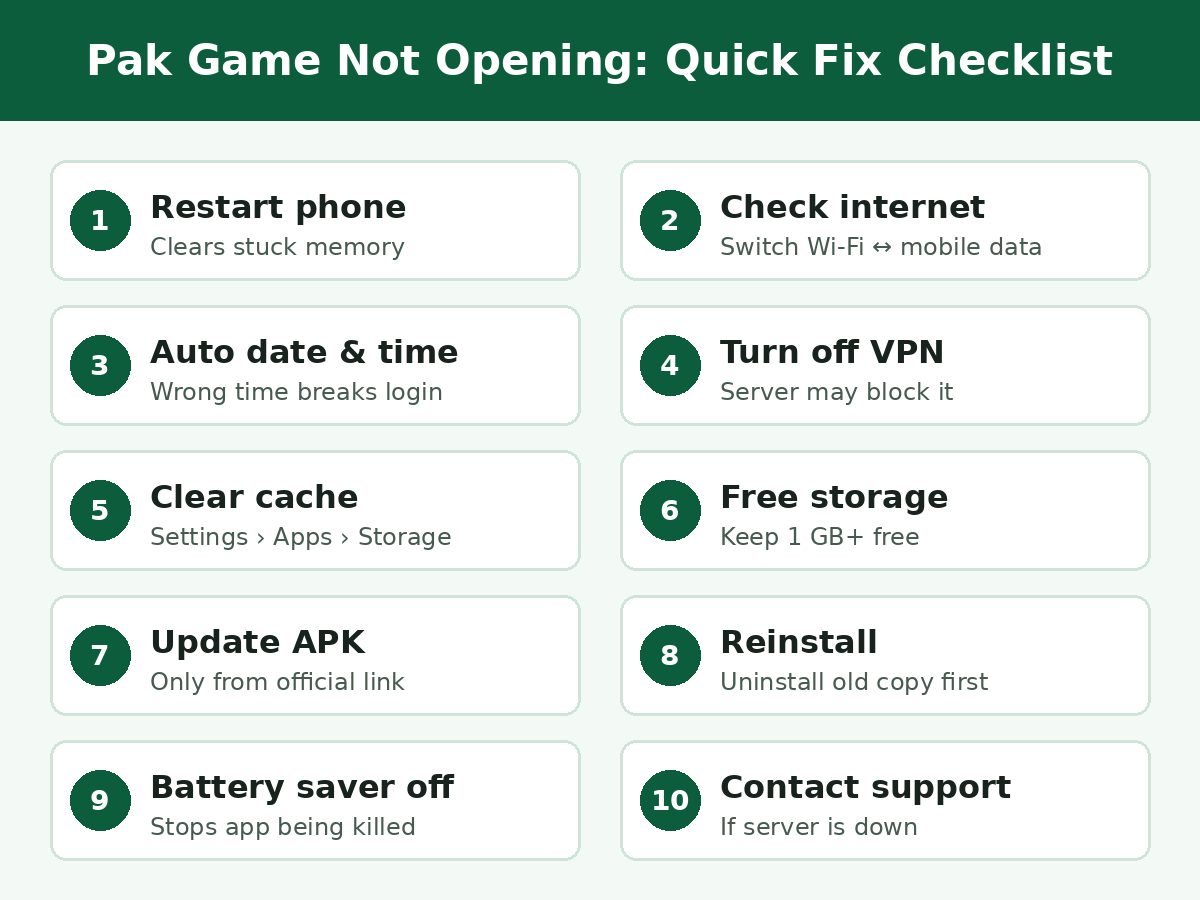
1. Restart Your Phone
It sounds too simple, but a restart clears stuck memory and closes apps running in the background. Hold the power button, tap Restart, wait for the phone to fully load, and then open Pak Game before opening any other app.
2. Check Your Internet Connection
Pak Game needs a live connection to load your account. A slow or unstable signal often shows up as endless loading.
- Open YouTube or Google to see if the internet is working at all.
- If you are on Wi-Fi, switch to mobile data (Jazz, Zong, Telenor, Ufone) and try again. Some routers block game servers.
- If you are on mobile data, turn Airplane mode on for 10 seconds and then off. This gives you a fresh connection.
- Avoid opening the app when the signal shows only one bar or “E”.
3. Turn On Automatic Date and Time
A wrong date or time on your phone is a hidden reason many apps refuse to connect. Secure connections check the time, and if your clock is off, the app may fail silently.
- Go to Settings › System › Date & time (on some phones: General management › Date and time).
- Turn on Automatic date & time and Automatic time zone.
- Make sure the time zone shows Pakistan (GMT+5).
4. Turn Off VPN, Proxy and Private DNS
A VPN changes your location. Many gaming servers block VPN traffic or connect very slowly through it. Close any VPN app completely. Also check Settings › Network › Private DNS and set it to Automatic or Off if you changed it before.
5. Clear the App Cache
Cache is temporary data the app saves to load faster. When it gets corrupted after an update, the app can crash on start. Clearing cache is safe and does not log you out in most cases.
- Open Settings › Apps and find Pak Game.
- Tap Force stop.
- Tap Storage and then Clear cache.
- Open the app again.
If that does not work, you can also tap Clear data. This resets the app like new, so you will need to log in again with your number and password. Keep your password ready first. If you forgot it, follow our Pak Games password reset guide.
6. Free Up Storage and RAM
When the phone has very little free space, Android may stop apps from opening or saving files. Try to keep at least 1 GB of storage free.
- Delete old videos and WhatsApp media you don’t need.
- Remove apps you never use.
- Close all background apps before opening Pak Game.
- On low-RAM phones (2–3 GB), avoid running the game with many other apps open.
7. Update to the Latest Version
Old versions stop working when the game updates its server. If the app shows an update message, accept it. If it doesn’t, download the newest APK yourself from the Pak Game download page and install it over the old one.
Important: Only download Pak Game from the official link. APK files shared in WhatsApp groups, Telegram channels or random websites can be fake copies that steal your login details or OTP. A fake app that “won’t open” may actually be a scam app.
8. Uninstall and Reinstall the App (Fix for “App Not Installed”)
If you see “App not installed” or “Package appears to be invalid”, the usual reason is a conflict with an older copy or a download that did not finish fully.
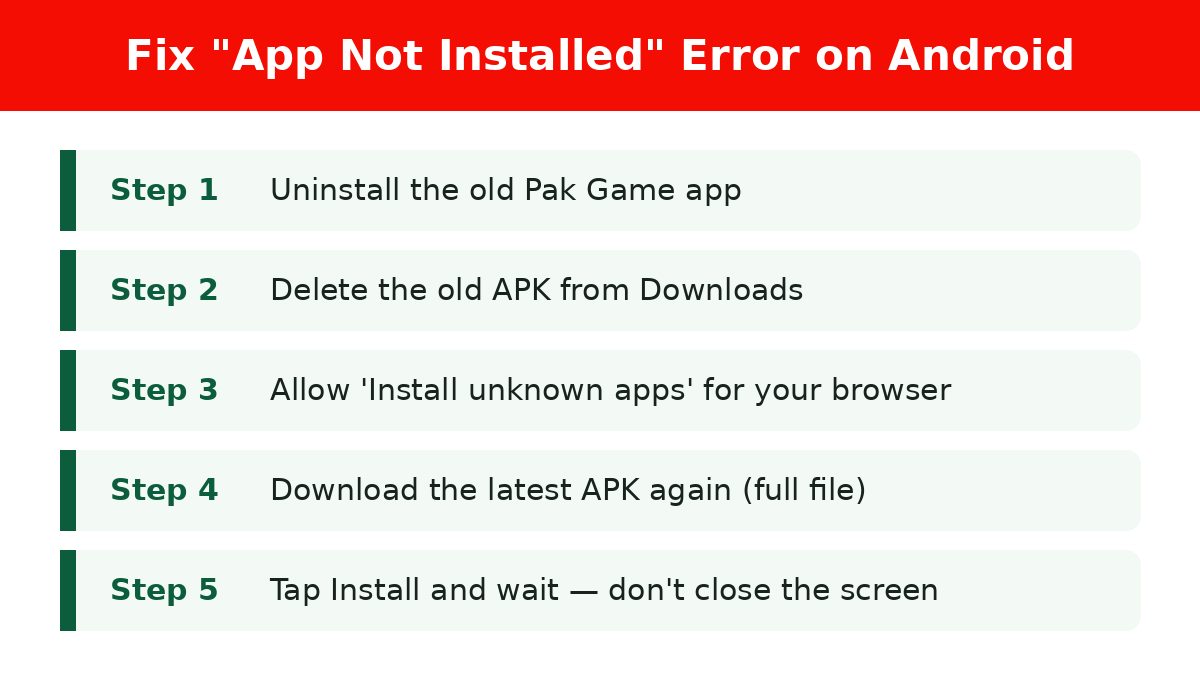
- Uninstall the old Pak Game app from Settings › Apps.
- Open your Files › Downloads folder and delete the old APK file.
- Go to Settings › Apps › Special app access › Install unknown apps and allow your browser (for example Chrome).
- Download the latest APK again on a stable connection. Make sure the file size looks complete.
- Tap the file, then Install, and keep the screen open until it finishes.
If Google Play Protect shows a warning, read it carefully. Only continue if you downloaded the file from the official source yourself.
9. Turn Off Battery Saver and App Restrictions
Phones from Xiaomi, Infinix, Tecno, Oppo, Vivo and Realme are strict with background apps. Battery saver can close the game during loading.
- Turn off Battery saver or Ultra power saving while you play.
- Go to Settings › Apps › Pak Game › Battery and choose No restrictions or Unrestricted.
- Also update Android System WebView and Chrome from the Play Store. Many game apps use WebView to show their screens, so an old WebView can cause a blank page.
10. Check If the Server Is Down, Then Contact Support
If you tried everything and the app still won’t load, the problem may not be your phone. Game servers sometimes go down for maintenance or updates, usually for a short time.
- Ask a friend who plays if their app is working.
- Wait 30 minutes and try again before reinstalling again and again.
- If it stays down for hours, contact support only through the in-app or official channel. See our Pak Game customer service guide to find real support and avoid fake helpline numbers.
Pak Game Not Opening on iPhone or PC?
The fixes above are for Android, where most players use the APK. On iPhone, the game usually runs through a web shortcut or browser, so the common fixes are: clear Safari history and website data, turn off Private Relay or VPN, and add the shortcut again. Full steps are in our Pak Game iOS guide.
On a computer, the app runs inside an Android emulator. If it doesn’t open there, update the emulator, give it more RAM in its settings, and enable virtualization in your BIOS. Read the Pak Game for PC guide for the full setup.
What Not To Do When the App Won’t Open
- Don’t share your OTP or password with anyone who says they can “fix” the app for you. Real support never asks for your OTP.
- Don’t install “modded” or “hack” versions that promise extra bonus. They often lock or steal accounts.
- Don’t create a new account just because the app won’t open. Your old account and balance are still there once the app works again. Multiple accounts may also break the platform’s rules.
- Don’t keep re-depositing from another app or site while your main app is down. Wait until you can check your balance properly.
Will I Lose My Balance If I Reinstall?
No. Your balance, deposit and withdrawal history are stored on your account on the server, not on your phone. When you reinstall and log in with the same registered mobile number, everything comes back. That is why it’s important to remember your password and keep your SIM active. If you have a pending payout while the app was down, read our guide on withdrawal pending issues before requesting again.
Final Words
Most “Pak Game not opening” problems are fixed in a few minutes with a restart, a cache clear, correct date and time, or a fresh install of the latest APK. Go step by step, keep your login details private, and only download the app from the official source. If you are new and haven’t set up your account yet, start with the Pak Game register guide, then use the Pak Game login page to sign in.
Frequently Asked Questions
Why is my Pak Game app not opening?
The most common reasons are corrupted cache, an old app version, weak internet, wrong date and time, a VPN, or low storage. Sometimes the server is under maintenance for a short time.
How do I fix Pak Game stuck on the loading screen?
Switch between Wi-Fi and mobile data, turn off VPN, set automatic date and time, and clear the app cache from Settings › Apps › Pak Game › Storage.
Why does my phone say “App not installed” for Pak Game?
Usually an older copy is still installed or the APK download was incomplete. Uninstall the old app, delete the old APK, allow unknown apps for your browser, and download the latest APK again.
Will reinstalling Pak Game delete my money?
No. Your balance is saved on your account, not on the phone. Log in again with the same registered mobile number and password.
Is clearing data safe for Pak Game?
Yes, but it logs you out. Keep your password ready before you tap Clear data. Clearing cache alone is safer and usually keeps you logged in.
What should I do if Pak Game is down for everyone?
Wait 30 minutes to a few hours, as maintenance is usually short. If it continues, contact official support only, and never share your OTP with anyone.